Browser-local image tools
Resize Image to 500×500 Pixels
This 500×500 preset uses padding to keep the full original image inside an exact square canvas. PNG and WebP can keep transparent margins; choose a solid background when exporting JPG.
Browser-local processing
Compare fitting, cropping and padding
These are recorded examples, not promised results for your files. Download an input, use the settings below, then compare your saved output.
Each run uses the same 1280 × 575 photo, a 500 × 500 box, JPG quality 85 and a white background. Fit preserves the full frame with a shorter output; crop fills the box by removing edges; pad preserves the frame and adds white space. These recorded settings are independent of any preset selected above.
Download the source photo · 299,063 B · 1280 × 575 px
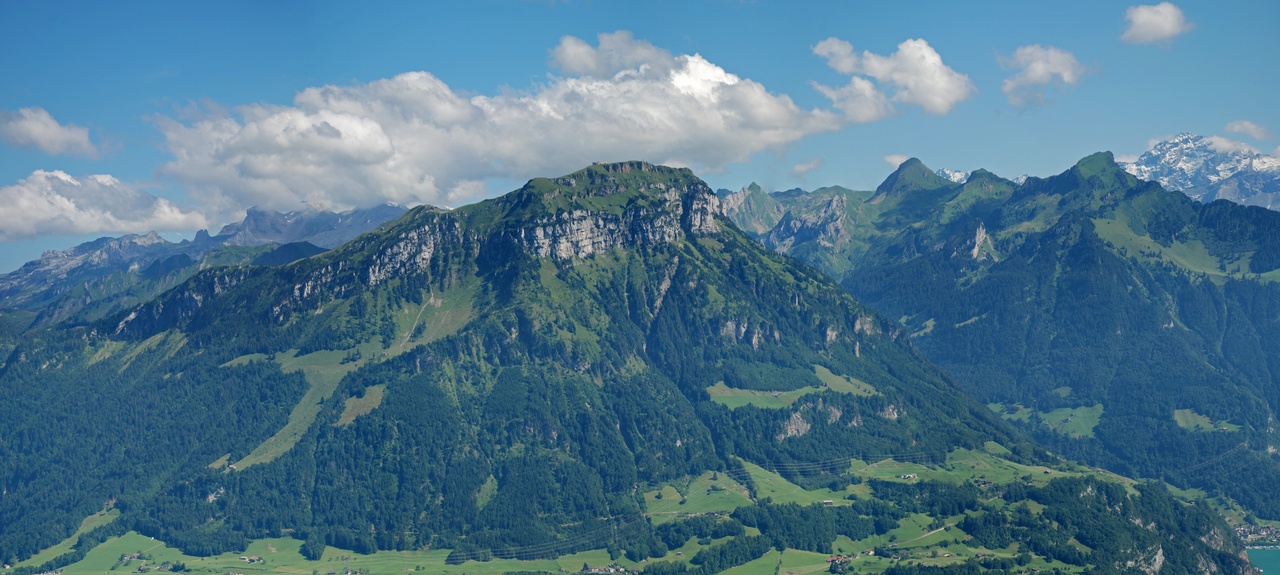
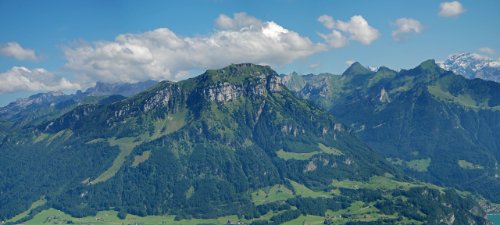
Download · 27,354 B
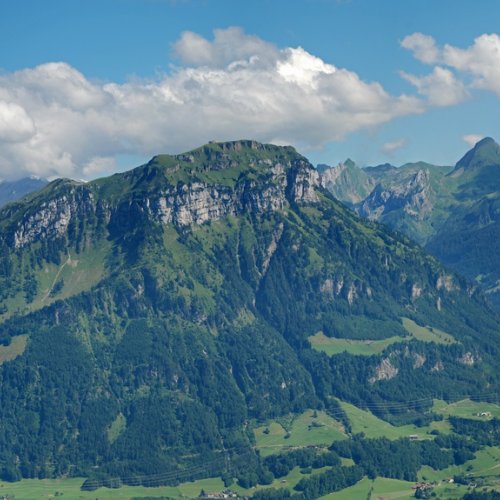
Download · 56,820 B
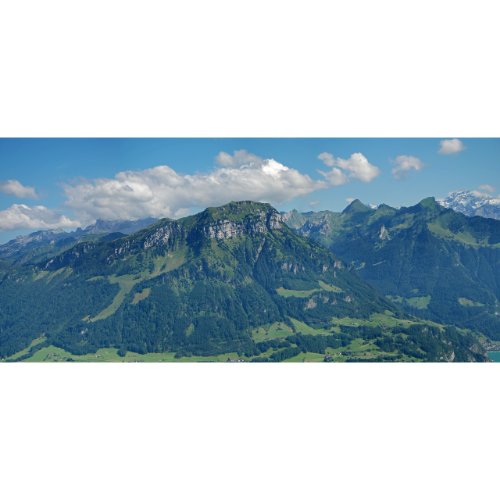
Download · 30,757 B
Source, environment and reproduction details
Recorded 2026-10-19 · Chromium 140.0.7339.16 · Windows · 1280 × 960 · site version 865d4e4.
Photo: Fronalpstock big.jpg — Hannes Röst, CC BY-SA 3.0. Resized and re-encoded; all photographic derivatives in this sample keep that license. Original fictional screenshots, transparent graphics and PDFs are available under CC0. No source includes customer files.

- Download an input linked above and keep the original.
- Use this tool with the listed settings. Keep the tab open, then save the actual output.
- Compare saved bytes, dimensions and detail. Browser/encoder versions may produce different bytes; these are recorded observations, not universal compression ratios.
Download settings, exact byte counts and SHA-256 checksums (JSON) · Asset licenses
A square canvas that keeps the whole subject
Padding suits a product or logo whose edges must remain visible. Switch to crop for a full-bleed square, and inspect whether labels or product corners are cut off.
Check the result before uploading
Making a small source larger creates more pixels, not more captured detail. The resulting file can grow; use the compressor afterward only if you also have a byte-size limit.
Example: square padding without cutting a product
A 1200×800 source fits at approximately 500×333 inside the 500×500 canvas, leaving roughly 83.5 pixels of padding above and below. Center crop instead keeps the central 800×800 region. These are geometry examples, not file-size or image-quality benchmarks.
How to use this tool
- Select or drop static JPG, PNG or WebP images.
- Review width, height, sizing mode and output format, then resize the batch.
- Check every output’s pixels and byte count, then download individual files or a ZIP.
Image processing requires no file upload. Page assets and usage analytics can still make network requests. See the Privacy page for how analytics works.
Frequently asked questions
Will the output have exact dimensions?
Crop, pad and stretch produce the exact requested pixels. Fit preserves proportions inside that box and may produce a smaller width or height.
Can I preserve transparency?
Choose PNG or WebP and keep transparency enabled. JPG cannot store transparent pixels; it uses your selected background color.
What are the batch and safety limits?
Up to 10 static JPG, PNG or WebP files, processed one at a time. Each input is limited to 50 MiB and 45 megapixels; output is limited to 8,192 pixels per side and 16 megapixels. Retained outputs and ZIP output are capped at 100 MiB. Animation is not supported.