

No upload
Your image stays on your device while the current browser handles decoding and compression.
Batch image compressor
Compress up to 10 JPG, PNG, or WebP images per batch. Set a shared target size and quality, then download individual files or a ZIP. Files stay on your device and are processed one at a time.
Browser-local processing
These are recorded examples, not promised results for your files. Download an input, use the settings below, then compare your saved output.
All runs used quality 82 and decimal KB (1 KB = 1,000 bytes). The 0.001 KB case intentionally asks for only one byte: the tool returns its best effort and reports a miss. PNG quality does not act like lossy JPG quality; dimensions may shrink.
| Input | Target | Downloaded result | Pixels: before → after |
|---|---|---|---|
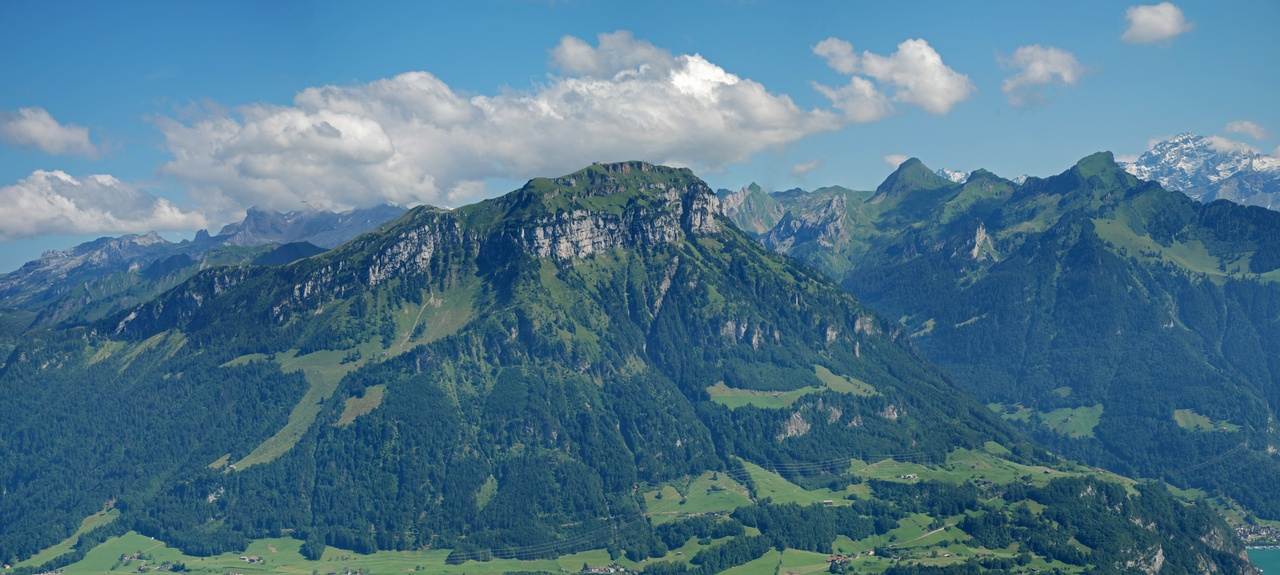
| Landscape photo 299,063 B | 50,000 B | 49,519 B Target met | 1280 × 575 px → 1280 × 575 px |
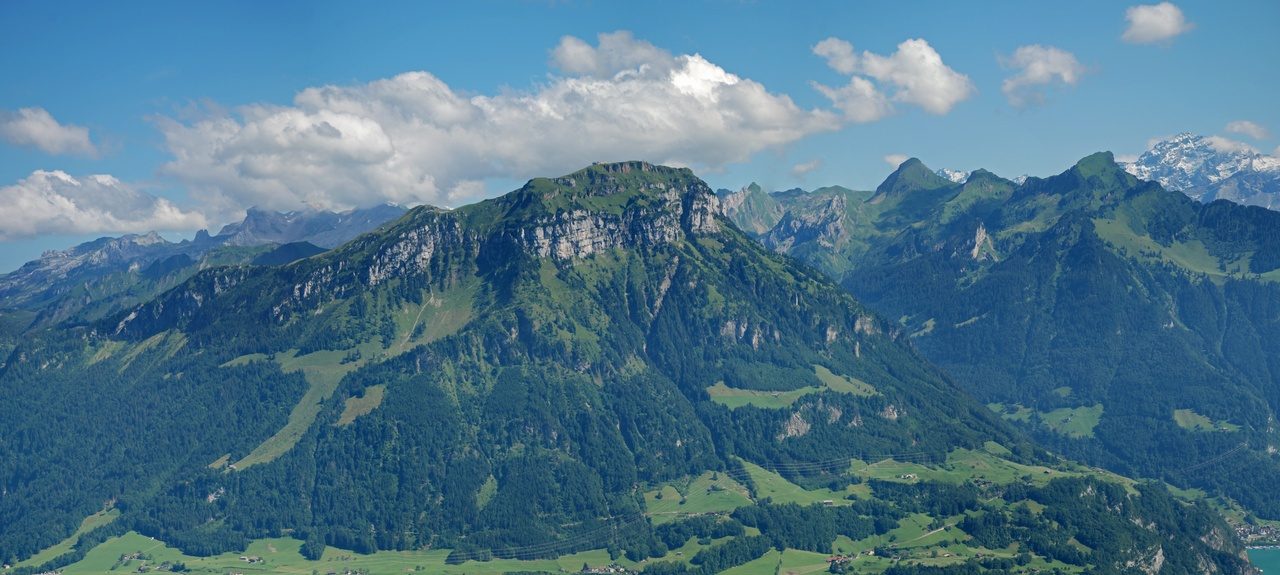
| Landscape photo 299,063 B | 100,000 B | 98,937 B Target met | 1280 × 575 px → 1280 × 575 px |
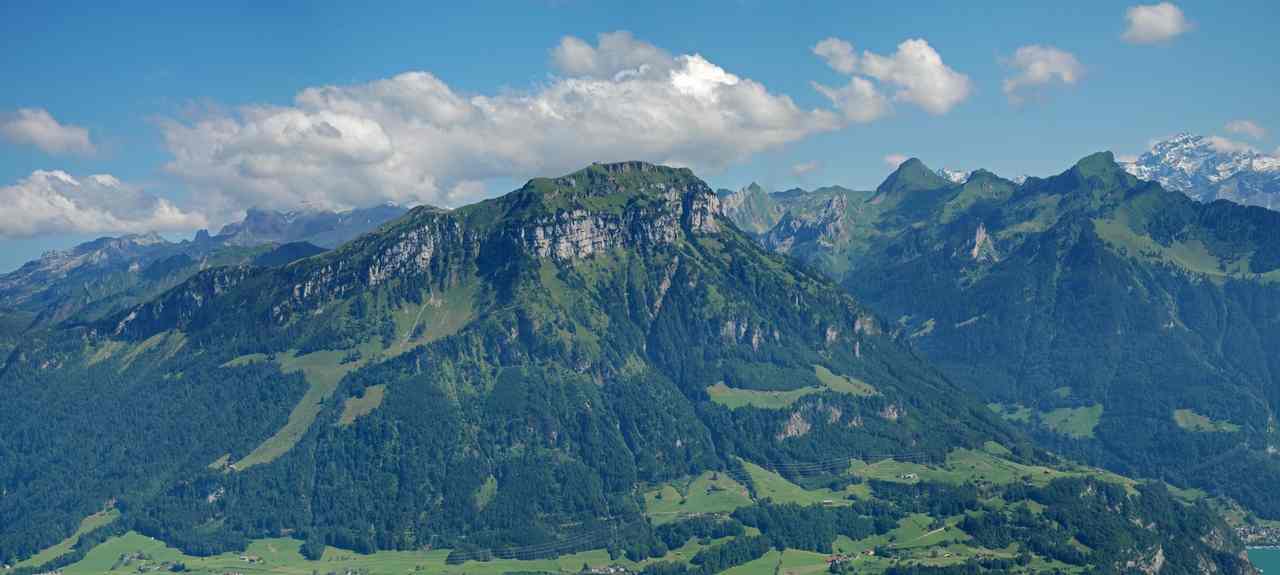
| Landscape photo 299,063 B | 200,000 B | 144,547 B Target met | 1280 × 575 px → 1280 × 575 px |
| Original fictional interface screenshot 44,015 B | 50,000 B | 44,015 B Target met | 1200 × 800 px → 1200 × 800 px |
| Original transparent graphic 15,566 B | 50,000 B | 15,566 B Target met | 512 × 384 px → 512 × 384 px |
| Original transparent graphic 15,566 B | 1 B | 88 B Target missed | 512 × 384 px → 1 × 1 px |
On a small screen, scroll the table sideways to compare output pixels.
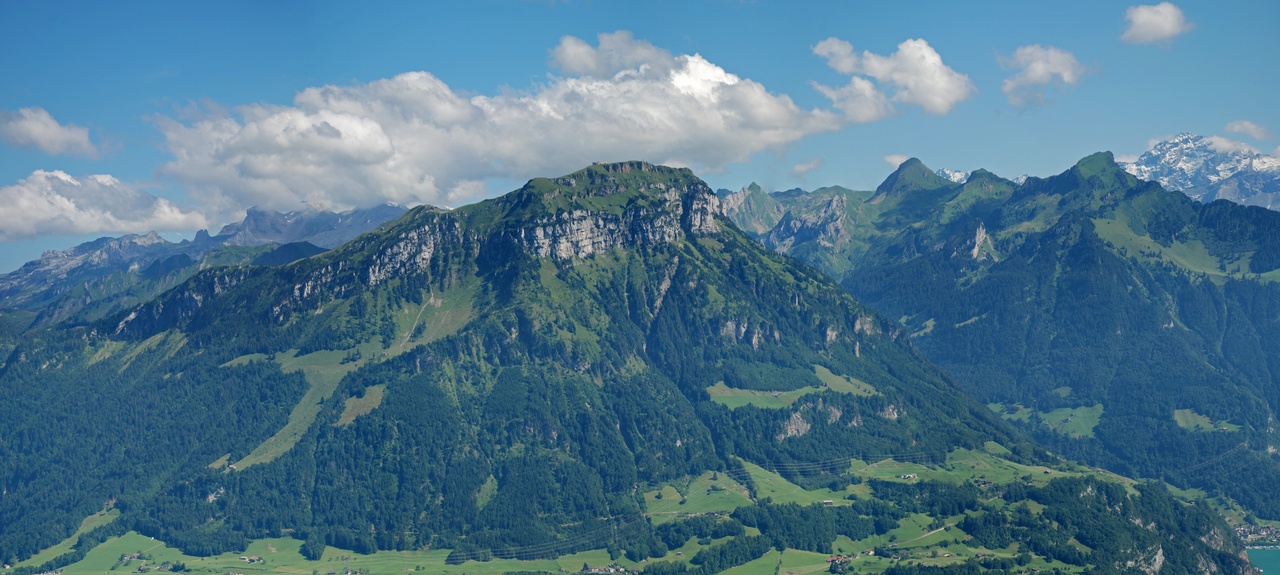
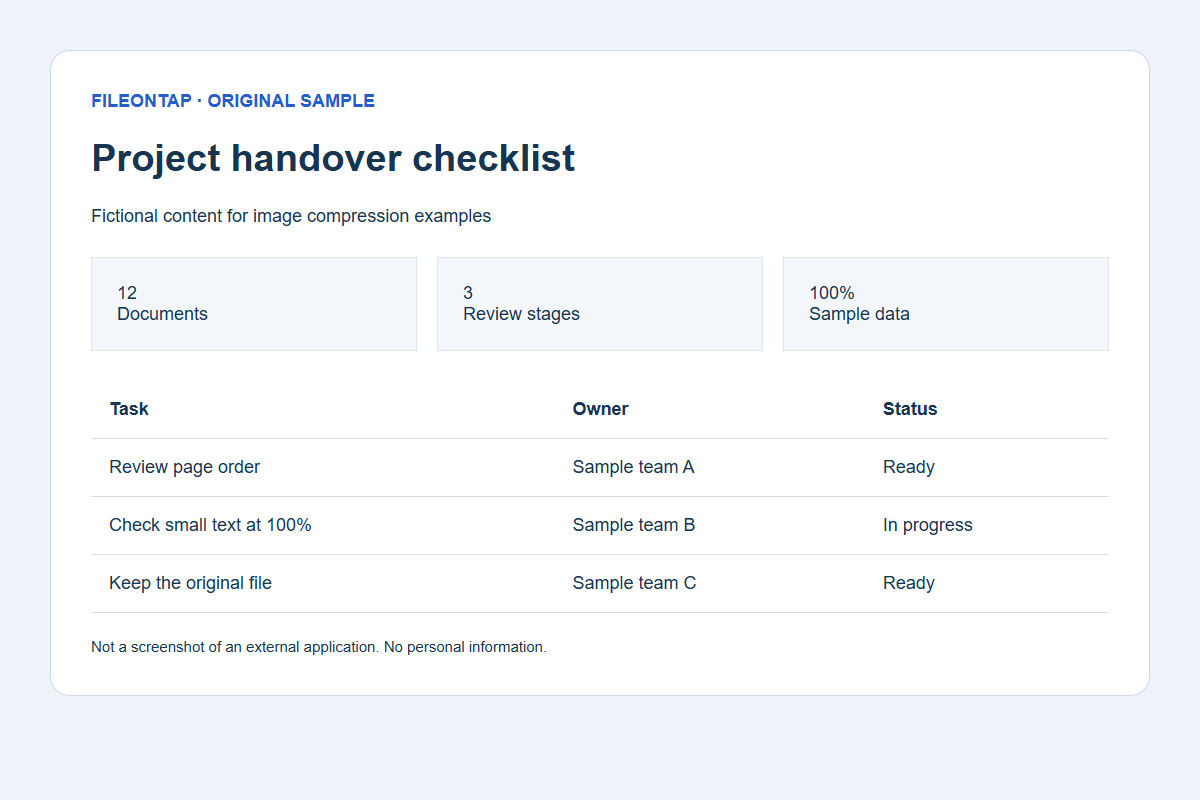
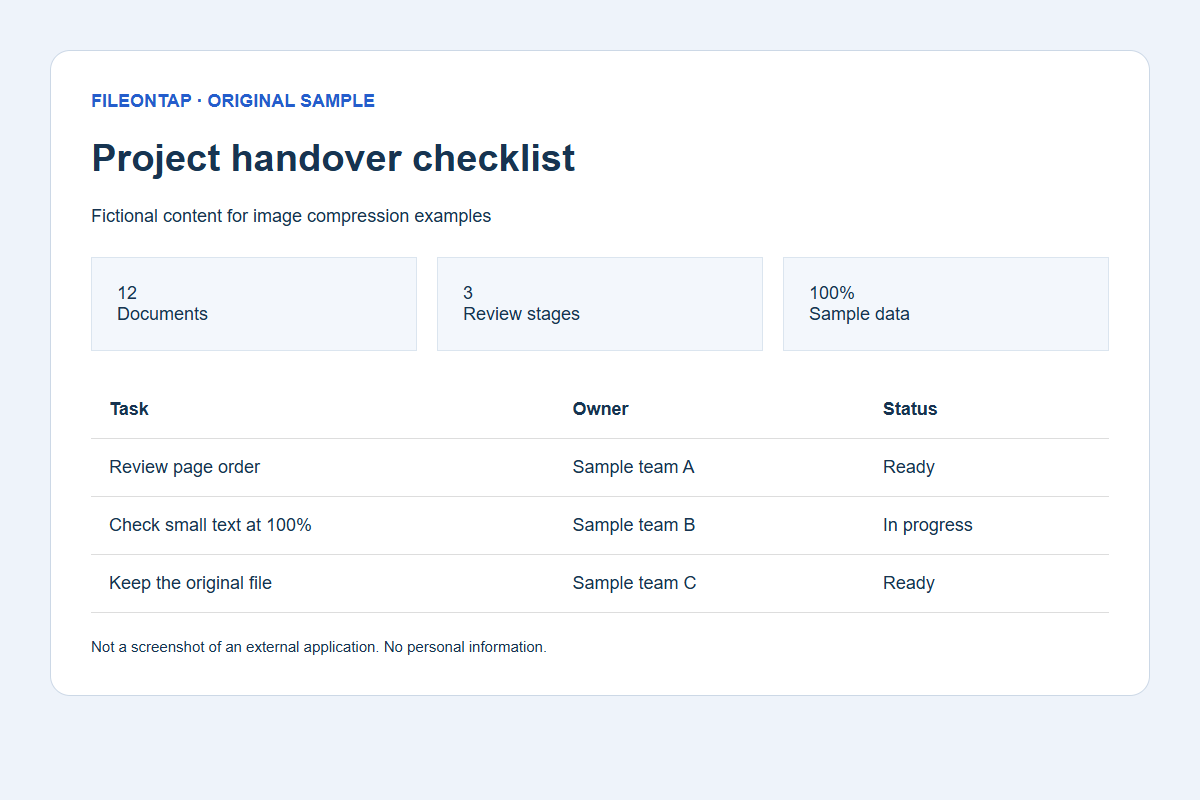
Already below target; original bytes retained unchanged.
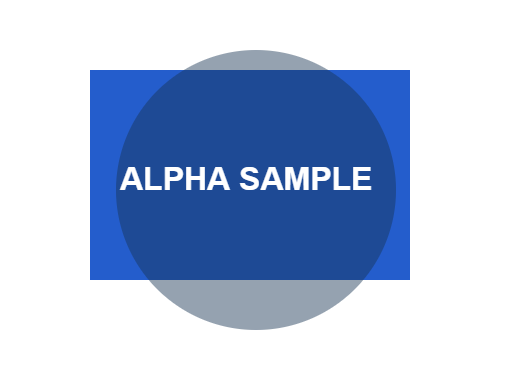
Already below target; original bytes retained unchanged.
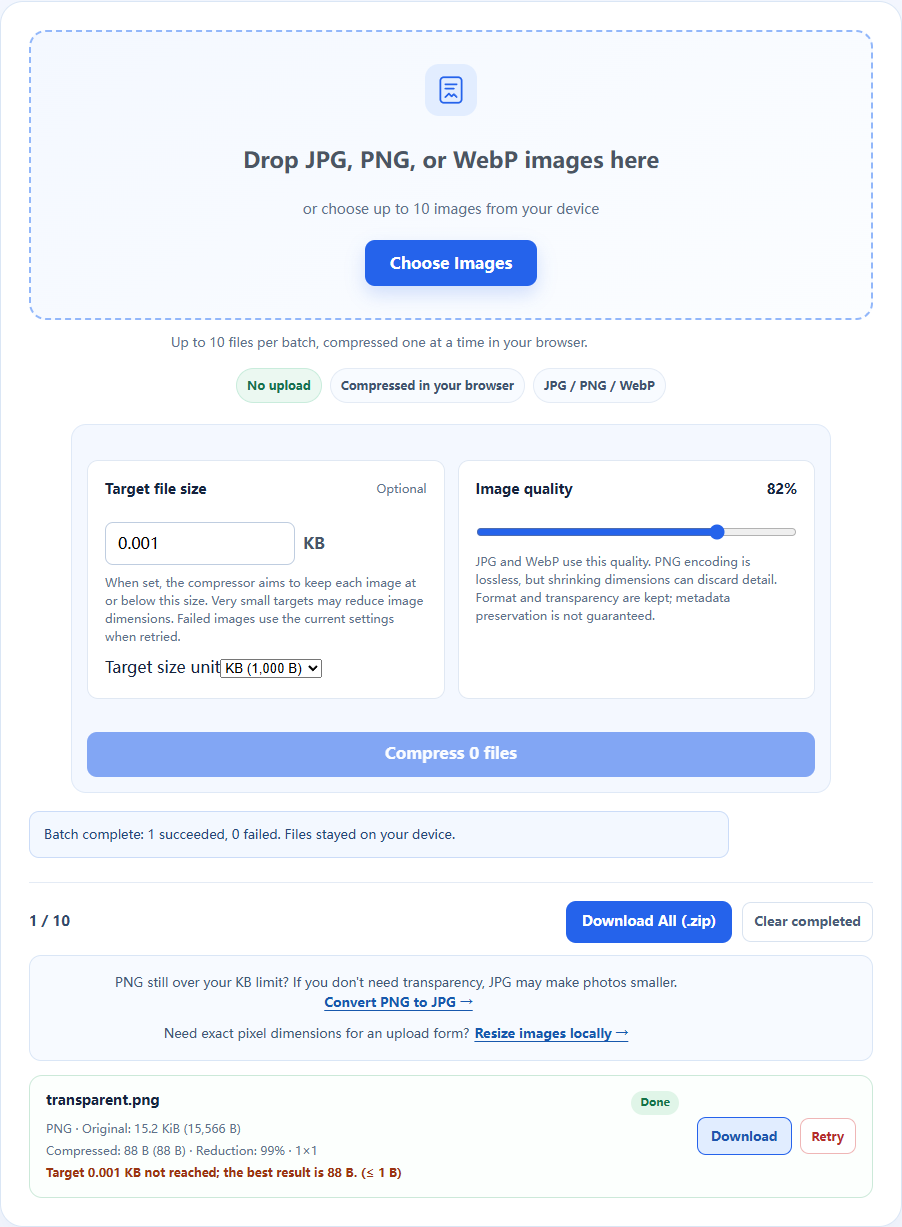
Recorded 2026-10-19 · Chromium 140.0.7339.16 · Windows · 1280 × 960 · site version 865d4e4.
Photo: Fronalpstock big.jpg — Hannes Röst, CC BY-SA 3.0. Resized and re-encoded; all photographic derivatives in this sample keep that license. Original fictional screenshots, transparent graphics and PDFs are available under CC0. No source includes customer files.
Download settings, exact byte counts and SHA-256 checksums (JSON) · Asset licenses
Your image stays on your device while the current browser handles decoding and compression.
Adjust JPG and WebP quality to balance visual quality against a smaller file size.
Check each image’s original size, compressed size and target status, then download individually or use Download All (.zip) for finished images.
Select a mix of JPG, PNG, and WebP files or drag in multiple images.
Set one target size and quality for the batch. Quality applies to JPG/WebP; PNG stays lossless.
Images are compressed one at a time. Review each result, then download individually or click Download All (.zip) to save completed images together.
One quality setting does not work the same way for every format. For a 50KB, 100KB or 200KB upload budget, choose a suitable format and check the measured bytes and target status.
| Feature | JPG / JPEG | PNG | WebP |
|---|---|---|---|
| Quality slider | Applies: lossy quality | Ignored: lossless encoding | Applies: lossy quality |
| Strict KB targets | Reduce quality; resize pixels if needed | Reduce pixel dimensions if needed; format stays PNG | Reduce quality; resize pixels if needed |
| Transparency | Not supported | Supported | Supported |
| Best for | Photos, portraits and form uploads | Screenshots, logos and transparent graphics | Web images and upload forms that accept WebP |
The compressor keeps the input format. If a photo PNG is still too large and transparency is unnecessary, JPG may help. If an upload form specifies exact pixel dimensions, resize first.PNG to JPG →Image Resizer →
Image compression is useful for web uploads, email attachments, messaging, and forms with file-size limits. You can process up to 10 mixed JPG, PNG, and WebP images per batch. For JPG and WebP, lowering quality can substantially reduce file size. PNG is re-encoded losslessly by the browser. For photos, screenshots, or transparent graphics, compare JPG and PNG format choices before compressing.
If browser re-encoding would make an image larger, FileOnTap keeps the original file size instead of giving you a larger “compressed” result. For HEIC photos, use the HEIC converter tools.
Quality, pixel dimensions, and image format affect size in different ways. The quality slider changes JPG/WebP encoding; PNG ignores it. Without a target, compression uses the decoded image dimensions. A small KB target can trigger automatic resizing, which changes pixel width and height rather than just encoding quality.
PNG can remain large when an image has many pixels, complex detail, or transparency that you need to keep. Its lossless encoding differs from JPG photo compression, so lowering the quality slider will not make a PNG smaller. The most compact format depends on the image and its purpose.
If the result is still too large, check the source dimensions, adjust quality where it applies, and consider whether another format fits the destination. This compressor keeps the input format; use the image conversion tools if a different format is appropriate, then review the new result.
The KB value is a target to work toward, not an exact promised file size. Different images may finish below the goal or miss it after the available quality and resize attempts. Decimal KB is 1,000 bytes; KiB is 1,024 bytes. Check each result’s target status and visual detail before using it, especially when a small target has reduced dimensions.
No. Image decoding and compression run locally in your browser. The file is not sent to FileOnTap servers.
Choose a mix of JPG/JPEG, PNG, and WebP images, up to 10 files per batch. Your browser compresses them one at a time, and completed results can be downloaded individually or together as a ZIP.
Yes. The target KB and quality settings are shared by the batch when compression starts. Each image is handled independently; an unreasonable target for one file will not stop the others. A failed image uses your current settings when retried, without changing completed results. Very small targets may require reducing image dimensions.
PNG encoding preserves rendered pixels; resizing removes detail. Animated images are not supported. The quality slider applies only to JPG and WebP. A small PNG target may require reducing image dimensions.
The queue shows each file's original size, compressed size, percentage reduction, and whether it reached the target.
If browser re-encoding would create a larger file, FileOnTap keeps the original file size instead.
Re-encoded JPG and WebP files generally do not preserve all original EXIF metadata. Keep the source file when metadata matters.
Some upload forms enforce 100 KB as 100,000 bytes, rather than 100 KiB (102,400 bytes). Choose KB (1,000 B) in Target size and consider a little extra margin, such as 95 KB. Check each result’s target status and actual byte count before submitting; compression cannot guarantee acceptance.