Scanned PDF size guide
Why Is My Scanned PDF So Large? Try 144, 110, or 90 DPI
A scan stores page images, and a few high-resolution color pages can outweigh a text PDF many times over. Lowering output resolution and JPEG quality can reduce a scan-heavy file, but the right setting depends on small print, diagrams, color, and the recipient's requirements.
Why scanned PDFs get large
A scanner may capture each page as a full-color image at high resolution. File size grows with page count, pixel dimensions, color detail, and how the scanner encodes its images. Text-only PDFs often store characters and vector shapes compactly; a scanned page is closer to a photograph of the paper.
What 144, 110, and 90 DPI mean in this tool
| Setting | When to try it | Tradeoff |
|---|---|---|
| 144 DPI · Balanced | Start here for forms with ordinary text or mixed page content. | Keeps more page detail, so the file may remain larger. |
| 110 DPI · Smaller | Try when the 144 DPI output is still too large and the source text is comfortably readable. | Fine print and thin lines may soften; review at normal reading size. |
| 90 DPI · Maximum | Try only when a smaller file is important and you can carefully verify legibility. | Lowest detail of these options; small print, stamps, signatures, and diagrams can become hard to read. |
Compression re-renders each page as a JPEG image and creates a new PDF. Text, vector graphics, links, and searchable text become page images. Password-protected PDFs are not supported. Keep the original if you need selectable text, accessibility, or long-term fidelity.
Compress and compare before you send
- Check the recipient's file-size limit and any resolution or archival rules. There is no guaranteed 2 MB result or fixed percentage reduction.
- Open Compress PDF and choose the scanned PDF.
- Start with 144 DPI. Download the result and compare its displayed size with the original.
- Open pages with the smallest text, signatures, tables, and colored marks at the size the recipient will read. If the file is still too large, try 110 DPI, then 90 DPI only if the details remain acceptable.
- Choose the smallest version that passes both the recipient's size limit and your legibility check. Keep the original and label the compressed copy clearly.
Why compression may not help
A PDF that already uses efficient compression, contains mostly simple text, or includes non-image content may not shrink. Re-rendering can even produce a larger file for some sources. Check the actual before-and-after size; if the scan is unreadable, return to the original rather than lowering DPI further.
The same scan at three compression settings
These are recorded examples, not promised results for your files. Download an input, use the settings below, then compare your saved output.
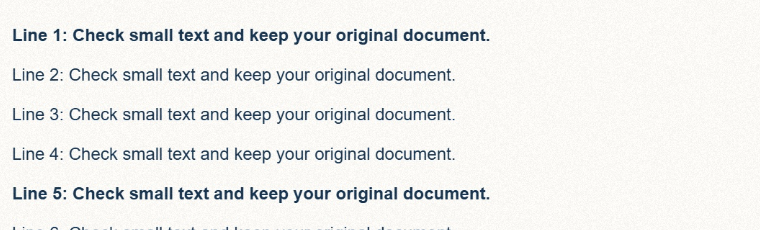
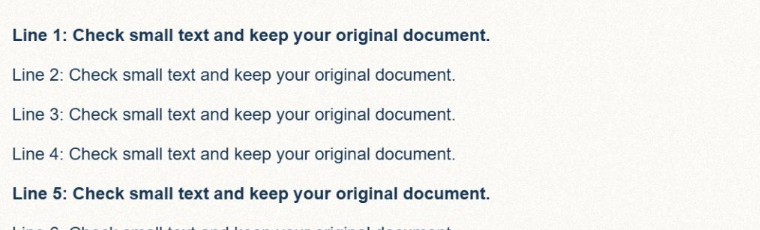
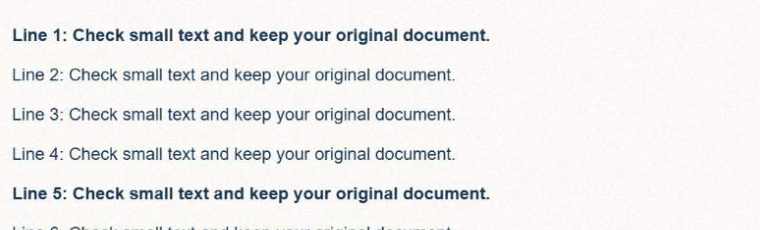
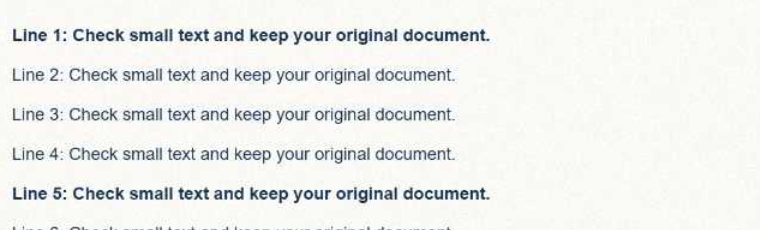
The input is a two-page, raster-only fictional scan with small text and a drawn handwriting sample. It contains no personal data or cryptographic signature. All three outputs were downloaded from Compress PDF using its named presets.
Download source PDF · 1,983,300 B · 2 pages
| Setting | Output | Reduction from source |
|---|---|---|
| 144 DPI | 451,178 B · 2 pages | 77.3% |
| 110 DPI | 184,019 B · 2 pages | 90.7% |
| 90 DPI | 108,958 B · 2 pages | 94.5% |
The crops below show the same first-page region at the same display scale. Open or download them to inspect small text. Lower DPI may lose legibility; file-size savings vary with the input.
This tool rasterizes pages. Selectable text, searchable text layers, interactive forms, links, annotations and valid digital signatures are not preserved as their original PDF objects. It does not add OCR. Do not use a re-rendered copy where the original signature or editable form is required.
Source, environment and reproduction details
Recorded 2026-10-19 · Chromium 140.0.7339.16 · Windows · 1280 × 960 · site version 865d4e4.
Photo: Fronalpstock big.jpg — Hannes Röst, CC BY-SA 3.0. Resized and re-encoded; all photographic derivatives in this sample keep that license. Original fictional screenshots, transparent graphics and PDFs are available under CC0. No source includes customer files.

- Download an input linked above and keep the original.
- Use this tool with the listed settings. Keep the tab open, then save the actual output.
- Compare saved bytes, dimensions and detail. Browser/encoder versions may produce different bytes; these are recorded observations, not universal compression ratios.
Download settings, exact byte counts and SHA-256 checksums (JSON) · Asset licenses